Magoo guide
What every button, counter and label does.
Your Magoo card
This is how a Magoo looks in My Magoos.



 27
27 0
0

Manage your Magoo
The four buttons next to the name.
Open this Magoo in Studio to change its video, layers or buttons.
Open the Magoo store.
Get the QR code for this Magoo, ready to print or show on a screen.
Remove this Magoo for good. Its link and QR code stop working.
See how it is doing
The row under the name. The numbers are counters.
How many times this Magoo has been opened, by scan or by link.
How many people liked this Magoo.
Read what people say about this Magoo and reply.
Send the link to this Magoo by text, chat or social.
Who can see it
The labels at the bottom. Each one shows how this Magoo is set right now.
You can hand this Magoo over to someone else. Once they claim it, it is theirs.
Published: anyone you share it with can open it. Draft: only you can open it. Publish it to share it.
Discoverable: found by pointing a camera at its image. Not Discoverable: scanning its image does not find it.
Public: shown in Experiences on the home page. Private: kept out of Experiences on the home page.
The Magoo camera
This is what you see when a Magoo comes alive on your screen.
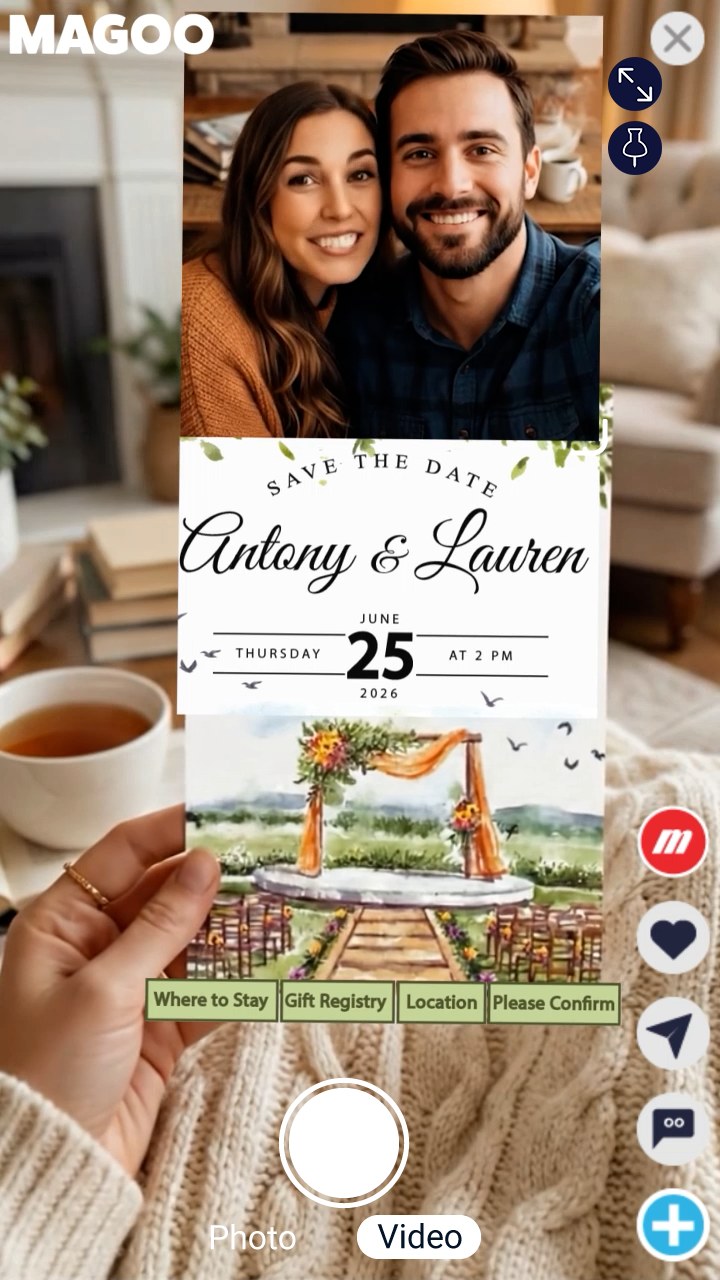
Move the video
The buttons at the top right, and the corner of the video.


Make the video fill your screen. Tap again to put it back on the image.


Keep the video on your screen even if you move your phone away from the image. Tap again to attach it back.
Drag the corner of the video to make it bigger or smaller.
Leave the camera.
React and share
The buttons on the right edge.

The profile picture of the person who made this Magoo.
Tell the creator you liked this Magoo.
Send the link to this Magoo by text, chat or social.
Read what people say about this Magoo and leave your own comment.

Start your own Magoo.
Capture and share your reveal
The controls at the bottom, the window that opens after you record, and the buttons on the Magoo itself.
Take a photo or record a video of the Magoo playing on the image.
Choose what the capture button takes. The one in white is selected.
After you record, a window opens with three options.
Share your reveal with other people by link. To show it in Experiences, open My Reveals and tap Post to Experiences. You need a user name and a profile picture, and the Magoo must be Public. It appears there after it is approved.

Keep the recording.
Remove the recording.
Some Magoos have their own buttons. Tap one to open what the creator added. Each creator designs them, so they look different on every Magoo.
Experiences
Experiences is the Magoo home.



Two kinds of cards
Each card is something a person shared.
The card shows the image that holds the hidden video.
The card shows a video someone recorded of a Magoo coming alive.
On the card
The name at the top and the row under the image.
The picture and name of the person who shared it.
How many times it has been opened. The number is under the button.
Tell the creator you liked it.
Read what people say and leave your own comment.
Send the link by text, chat or social.

On videos. Opens the image of the Magoo in the video, with its QR code and link, so you can discover it.
Always on screen
The bar that floats at the bottom while you scroll.

Turn the sound on or off for every video on the page. A line across it means the sound is off.
Open the camera and point it at an image to find the Magoo hidden in it. No link or QR code needed.
Create your own Magoo.